Introduction
Pixel8 (pronounced “pixelate”) is a fantasy console: a complete little game machine — screen, controls, sound chip, editors and all — that never existed as hardware and lives entirely in software, dreamed up with the charm and the limits of a 1980s handheld. Pixel8’s particulars: a 128×128 screen, 16 fixed colors, a 4×7 pixel font, 256 sprites, a 128×64 tile map, four audio channels — and where other fantasy consoles build in an interpreter for a scripting language, Pixel8 has a Rust compiler. You write a little Rust, it compiles to WebAssembly, and it runs sandboxed inside the console at a steady 60 frames per second.
Here is one, running right on this page. Click the cartridge to boot it —
arrow keys run, Z jumps, collect the coins and grab the trophy:
A finished game is a cart: a real PNG image with the compiled WebAssembly, all the art and sound, and (by default) the compressed Rust source embedded inside. Anyone can look at the cartridge; Pixel8 can play it; and if the source is included, anyone can turn it back into an editable project.
Not only games
A cart is just code that redraws the screen every frame, so it needn’t be a game at all. Point the same sprites, map and sound chip at something nobody plays and what you have is an animation — one that fits in a PNG, runs in a browser, and can be taken apart by whoever it reaches:
The constraints are the point
| thing | size |
|---|---|
| screen | 128 × 128 pixels, 16 fixed colors |
| sprites | 256 of 8×8 pixels, 8 flags each |
| map | 128 × 64 tiles |
| sfx | 64 slots, 32 steps, 8 waveforms |
| music | 64 patterns, 4 channels |
| framerate | 60 fps (or 30, the cart’s choice) |
| cart | one PNG; its wasm at most 128 KiB |
Like the consoles it dreams of, Pixel8 is small on purpose. A blank canvas the size of the ocean is paralyzing; 128×128 pixels and 16 colors you can fill by Tuesday. The limits keep projects finishable, carts shareable, and the whole system knowable — you can hold all of Pixel8 in your head.
Who this book is for
You should know a little Rust — enough to read a struct and an impl block.
You do not need to know anything about game development, graphics or audio
programming; the whole point of a fantasy console is that those are simple
here.
Fantasy consoles were popularized by
PICO-8, a much-loved commercial
console whose games are written in Lua, and Pixel8 is an open-source homage
to it: the palette, the editors, the > prompt and the workflow are all
lovingly borrowed. If you know PICO-8 you’ll feel at home immediately — the
difference is the language, and everything that comes with it: a real type
system, real modules, cargo, and your usual editor and tooling if you want
them. If you’ve never touched PICO-8, no matter; nothing in this book
assumes it.
How the book is organized
- Getting started installs the console, walks through creating and running your first cart, and tours the built-in editors.
- Making a game covers the SDK a chapter at a time: drawing, input, sound, saving data, and how to live comfortably inside the console’s limits.
- Shipping shows how to turn a project into a shareable PNG cartridge or a single-file web page, and how to import assets from PICO-8 carts.
- Reference tours the example carts (all playable in this book) and points at the deeper documentation.
Everything in this book — every screen, every editor, every playable cart — is produced by the same open-source console, which lives at github.com/zeenix/pixel8.
Installation
Pixel8 is two things: the console (a desktop app with the > prompt and
the editors) and the SDK (the pixel8 crate your game code uses). You
install the console; it takes care of the SDK when it scaffolds a project.
Prerequisites
You need Rust, installed via rustup, plus the WebAssembly target that carts compile to:
rustup target add wasm32-unknown-unknown
On Linux, the console’s audio backend links ALSA, so you need its headers once:
sudo apt install libasound2-dev        # debian/ubuntu
sudo dnf install alsa-lib-devel        # fedora
(macOS and Windows need nothing extra.)
Installing the console
cargo install pixel8-console
The crate is called pixel8-console, but the command it installs is
pixel8. Run it:
pixel8
You should land at the boot console — a black 128×128 screen with a >
prompt. Type help and press Enter. If you see the command list, you’re
done; skip ahead to Your first cart.
On a machine without a sound card (or without ALSA headers), install a
silent console instead. --no-default-features also turns off the
windowed frontend, so name window again to keep it:
cargo install pixel8-console --no-default-features --features window
Everything works identically, minus audio output.
The console in a terminal
The same console — editors, carts and all — also runs inside a terminal, as a separate binary:
cargo install pixel8-tui
pixel8-tui                    # boot the console in the terminal
pixel8-tui run mygame.png     # boot, load, and run immediately
Terminals with sixel support (foot,
WezTerm, Konsole, iTerm2, xterm with -ti vt340…) get real pixels;
everywhere else the screen is drawn with unicode half-blocks. Ctrl+Q
quits. On Linux, game input needs either a terminal with the kitty keyboard
protocol or read access to /dev/input (one-time:
sudo usermod -aG input $USER). See
docs/TUI.md for the
details and tuning knobs.
The rest of this book assumes the desktop console, but everything applies to the terminal one too.
Building from source
If you’d rather run from a checkout (or want to hack on the console itself):
git clone https://github.com/zeenix/pixel8
cd pixel8
cargo console                  # alias for: cargo run --release -p pixel8-console
cargo tui                      # alias for: cargo run --release -p pixel8-tui
A source checkout also gets you the bundled examples:
cargo console -- examples/platformer
then type run at the prompt.
Your first cart
Boot the console and create a project at the prompt:
> new mygame
This creates ./mygame, loads it, and drops you into the code editor. Press
Esc to hop back to the prompt at any time, and type:
> run
The console compiles your Rust to WebAssembly and boots it: a pink square on
a dark blue screen that you can move with the arrow keys. Esc returns to
the console. That’s the whole loop — edit, run, play, Esc.
What new made
A Pixel8 project is a real Cargo crate, not a proprietary bundle:
mygame/
  Cargo.toml           # an ordinary manifest, builds a cdylib for wasm32
  src/lib.rs           # your game
  assets.pixel8.json   # sprites, map, sfx, music, metadata
  .cargo/config.toml   # defaults `cargo build` to the wasm target
Cargo.toml is small enough to read in full:
[package]
name = "mygame"
version = "0.1.0"
edition = "2021"

[lib]
crate-type = ["cdylib"]

[dependencies]
pixel8 = { version = "0.2", default-features = false }

[workspace]

[profile.release]
opt-level = "s"
lto = true
panic = "abort"
The one dependency is the SDK. default-features = false makes the cart
#![no_std] — the normal way Pixel8 carts are written, and what keeps them
tiny: examples run from about 1 KiB to about 45 KiB for the platformer, all
well inside the 128 KiB cap. The release profile is pre-tuned to shrink the
WebAssembly.
The game, line by line
src/lib.rs starts as:
#![no_std]

use pixel8::*;

game!(MyGame { x: 60, y: 70 });

struct MyGame {
    x: i16,
    y: i16,
}

impl Game for MyGame {
    fn update(&mut self, ctx: &mut Context) {
        if ctx.btn(Button::Left) { self.x -= 1; }
        if ctx.btn(Button::Right) { self.x += 1; }
        if ctx.btn(Button::Up) { self.y -= 1; }
        if ctx.btn(Button::Down) { self.y += 1; }
    }

    fn draw(&self, gfx: &mut Graphics) {
        gfx.clear(Color::DARK_BLUE);
        gfx.print("Hello, Pixel8!", 36, 48, Color::WHITE);
        gfx.rect_fill(self.x, self.y, 8, 8, Color::PINK).unwrap();
    }
}
A game is a struct holding your state, plus the Game trait:
update(&mut self, ctx: &mut Context)runs 60 times per second (or 30, if you setconst FRAME_RATE: FrameRate = FrameRate::Fps30;in the impl). This is where you read input and move the world.Contextis the handle to everything a game does: input, audio, the map, random numbers, saved data.draw(&self, gfx: &mut Graphics)runs after eachupdateand paints the frame.Graphicsis the handle to the screen. Note it takes&self: drawing observes the world, it doesn’t change it. That split — mutate inupdate, render indraw— is enforced by the types, and it keeps game logic untangled from presentation.game!(MyGame { x: 60, y: 70 })declares the entry point and the state the cart starts in. That state is data: the initializer is a constant, so it is written into the cart’s memory image and placed there when the module loads — nothing runs to build it, and nothing copies it onto the stack. Aconst fnconstructor works the same way:game!(MyGame = MyGame::new()).boot(&mut self, ctx: &mut Context)— optional — runs once, before the firstupdate, on that state. It is where anything a constant cannot say goes: reading saved data, asking the clock, seeding the dice, giving a physics world its cast. It is also the first moment aContextexists, so no cart needs a “first frame is secretly the setup” branch inupdate:
fn boot(&mut self, ctx: &mut Context) {
    // Where the player left the box last time, if they have played before.
    self.x = ctx.storage_get("x").and_then(|v| v.as_i64()).unwrap_or(60) as i16;
}
If your constructor genuinely cannot be a constant — it allocates, or it has to
look something up first — say game!(MyGame = defer MyGame::new()) and it is
built at start-up instead. game!(MyGame), the Default form, is deferred for the
same reason. Deferring costs stack: the state exists twice for a moment, once on the
stack and once in the static it is moved into, so a big game built that way
needs a big stack reserve.
There is no main loop to write, no window to open, no timing code: the console calls you.
The edit-run loop
Make a change — say, a splash of randomness in update:
if ctx.btnp(Button::X) {
    self.x = ctx.rndi(120) as i16;
    self.y = ctx.rndi(120) as i16;
}(btnp is “button just pressed”; btn is “button held”. X is the
X key.) Then press Ctrl+R — from the editor, from anywhere — to
rebuild and run. Ctrl+S saves and kicks off a background build check,
flashing saved / building... / build ok in the editor’s bottom bar;
compile errors land in the console, trimmed to the useful part.
Using your own editor
Because a project is a plain crate, the integrated editor is optional. Open
mygame/ in your usual editor and build from a terminal:
cargo build --release
(The scaffolded .cargo/config.toml already targets
wasm32-unknown-unknown.) A console with the project loaded polls the
compiled wasm once a second and hot-reloads it when it changes — save in
your editor, cargo build, and the running game restarts with your change.
rust-analyzer, clippy, unit tests: everything works, it’s just Rust.
When things go wrong
Panics don’t crash the console: the cart stops on a friendly error screen
showing the actual panic message. An accidental infinite loop in update is
caught by the console’s per-frame work budget and reported as “ran too long”
instead of freezing anything.
For printf-debugging, log to the console (visible after Esc):
ctx.log("checkpoint");
logf!(ctx, "frame {} pos ({},{})", self.frame, self.x, self.y);
The console and its editors
Everything in Pixel8 happens on one 128×128 screen: the boot console, the
five editors, and running games all share it. Esc flips between the console
prompt and the editors; while a game runs, Esc stops it.
The prompt
The boot console is a tiny shell:
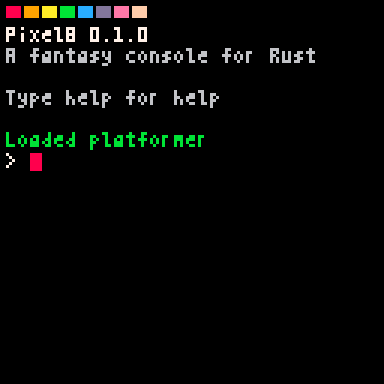
help lists the commands:
| command | what it does |
|---|---|
new <name> | create a project (a real cargo crate) and load it |
load <dir|cart.png> | load a project or a PNG cart |
save | save code + assets to disk |
reload | re-read from disk, dropping unsaved edits |
run | build + run (Esc stops) |
export <f.png|f.html> | export a PNG cartridge or a playable web page |
import <f.png> <dir> | turn an editable cart back into a project |
import-pico8 <f> [dir] | import a PICO-8 cart’s assets into a new project |
info | show the loaded cart’s metadata |
title <text> / author <text> | set cart metadata |
code / sprite / map / sfx / music | jump to an editor |
ls, cls, keys, reboot, exit | the usual suspects |
Two kinds of things can be loaded: a project (a directory — full
build/run/edit/export powers) or a cart (a PNG — runs as-is; if it embeds
source you can import it into a project and edit away).
Keys
keys (or help keys) prints these:
| key | what it does |
|---|---|
Esc | console ↔ editor; stop a running game |
Ctrl+R | build + run, from anywhere |
Ctrl+S | save + background build check |
Ctrl+Z / Ctrl+Y | undo / redo (in editors) |
Alt+← / Alt+→ | switch between editors |
arrows + Z/X | game buttons (also C/V and N/M) |
F1 | toggle the resource-stats overlay |
F6 | capture the screen as the cartridge label (while a game runs) |
The five editors
The tab icons across the top (or Alt+←/→) switch between editors. All of
them edit the two halves of your project: the code editor edits the Rust
under src/, while the other four edit assets.pixel8.json. Edits live in
memory until you save (or Ctrl+S); assets land in that one JSON file next
to your code, friendly to git diff. Every editor keeps a status bar along
the bottom with its key hints — you can see them in the screenshots below,
which show each editor with the platformer example loaded.
Code
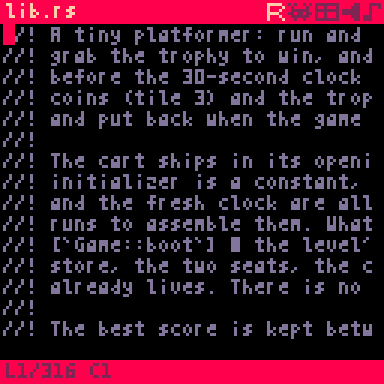
A small, honest text editor: 31 columns of Rust in a 4×7 pixel font, an
immediate cursor, and a status bar with the line count and cursor position.
The file name in the top-left corner is the file being edited; Ctrl+O
opens a picker to switch between the files under src/ or create a new
module. It’s genuinely pleasant for cart-sized programs — but it edits the
same files your external editor does, so use whichever you like.
Sprite
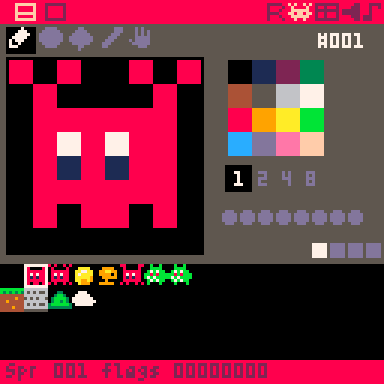
Pixel art on the 128×128 sprite sheet: 256 cells of 8×8 pixels. A zoomed
canvas fills the left; the toolbar above it holds the drawing tools. Down
the right side: the 16-color palette, the block-size buttons (1 2 4 8 —
edit a single sprite or a block up to 8×8 cells at once), and eight dots for
the sprite’s flag bits. The strip along the bottom is the sheet itself, for
picking which sprite to edit; the status bar shows its number and flags. An
8×8 block is taller than the four rows the strip shows, so at that size it
halves its cells and shows eight — the selection is always visible whole.
The flags mean nothing to the console — a game assigns its own meanings and
reads them back (this is how the platformer marks tiles as solid).
Map
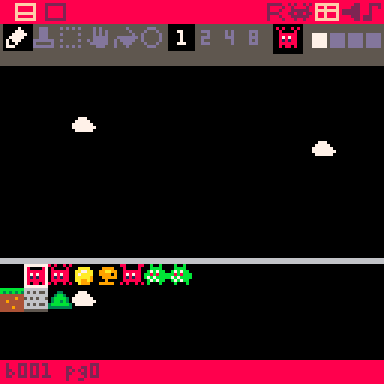
Paints sprites onto the 128×64 tile map. A scrollable viewport onto the map
fills the screen, with six tools in the toolbar — draw, paste, select, pan,
fill and circle — the current brush shown beside them, and the sprite-sheet
picker along the bottom; the status bar tracks the tile under the cursor.
The block-size buttons (1 2 4 8) are the sprite editor’s, so something
drawn there as a 2×2 or 8×8 block goes onto the grid as one stamp instead of
a cell at a time. The view zooms out to match — the brush is always 8 px on
screen, and at 8× the whole map is in front of you. Rooms, levels,
backgrounds: draw once here, then blit whole regions with one map call
from your game.
SFX
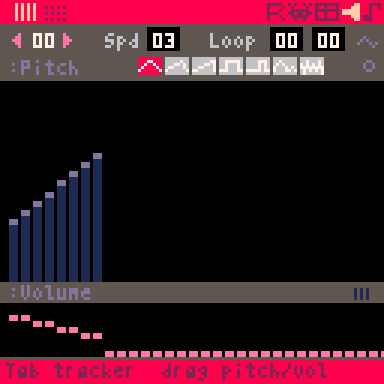
A step-sequencer for sound effects: 64 slots, 32 steps each. The top bar
picks the slot and sets its speed and loop points. Below is the pitch view
shown above: pick one of the eight built-in waveforms from the palette and
drag out a graph of pitch bars in it, with a volume strip underneath. Tab
switches to a tracker view (the same 32 steps as a note table, entered with
piano keys). There, move to a note’s waveform column (the right arrow key,
or a click), press i and type a digit from 0 to 7: the note turns into an
instrument note that plays the waveform of that slot, one of the first
eight. Those eight slots also get a button in the top bar that opens the
wave designer, for drawing their waveform by hand. Space previews the sound.
Music
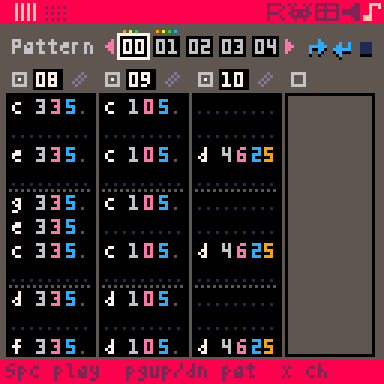
Arranges sfx into songs: 64 patterns, each assigning an SFX slot to up to
four channels. The pattern strip across the top selects and orders patterns
(with flow flags for looping and stopping); below it, one column per
channel, headed by its SFX slot number and showing that SFX’s notes inline —
the pencil beside a slot jumps into the SFX editor, where the actual notes
are authored. Space plays the pattern.
Running carts and the stats overlay
While a game runs, F1 toggles an overlay of the resource meters: CPU budget
used by update and draw, memory high-water, and measured fps. The two CPU
rows and the memory row refresh once a second, each showing that second’s
peak — the worst frame, not an average that would hide it — so the digits
stay readable instead of churning sixty times a second. When your game grows,
this is the first place to look — more on the budgets in
Living within the limits.
The headless CLI
Every pipeline stage also exists as a subcommand of the pixel8 binary, so
scripts and CI can do everything the prompt can:
pixel8                            boot the console
pixel8 <dir|cart.png>             boot with a cart loaded
pixel8 run <dir|cart.png>         boot, load, and run immediately
pixel8 new <dir>                  create a project
pixel8 build <dir>                compile it to wasm
pixel8 export <dir> <out.png>     build + write a png cart (--no-source to omit source)
pixel8 extract <cart.png> <dir>   editable cart -> project
pixel8 import-pico8 <c> [dir]     pico-8 cart (.p8/.p8.png) -> project
pixel8 export-web <in> <o.html>   one self-contained playable web page
                                  (--no-controls for a cart that reads no input)
pixel8 verify <cart.png>          load a cart and run 60 frames headless
verify is how this book’s own example carts are checked on every push —
the console is fully testable without a window.
Drawing
All drawing happens in draw, through the Graphics handle. The screen is
128×128 pixels; (0, 0) is the top-left corner, x grows right, y grows
down. Positions are i16 and sizes are u16 — comfortably wider than the
screen, so things can sit off-screen and slide in.
You never manage a framebuffer, textures or “surfaces”: you call draw functions, the console rasterizes them, and everything drawn off-screen is safely clipped.
The palette
There are exactly 16 colors, and they never change. The Color type has a
named constant for each:
| index | constant | index | constant | ||
|---|---|---|---|---|---|
| 0 | Color::BLACK | 8 | Color::RED | ||
| 1 | Color::DARK_BLUE | 9 | Color::ORANGE | ||
| 2 | Color::DARK_PURPLE | 10 | Color::YELLOW | ||
| 3 | Color::DARK_GREEN | 11 | Color::GREEN | ||
| 4 | Color::BROWN | 12 | Color::BLUE | ||
| 5 | Color::DARK_GREY | 13 | Color::LAVENDER | ||
| 6 | Color::LIGHT_GREY | 14 | Color::PINK | ||
| 7 | Color::WHITE | 15 | Color::PEACH |
A color from a runtime index is Color::new(i) (returns None past 15). It
is const, so const ACCENT: Color = Color::new(8).unwrap(); fails at
compile time if the index is out of range.
Shapes and text
fn draw(&self, gfx: &mut Graphics) {
    gfx.clear(Color::BLACK);                              // fill the screen
    gfx.set_pixel(10, 10, Color::WHITE);                  // one pixel
    gfx.line(0, 0, 127, 127, Color::DARK_GREY);           // inclusive endpoints
    gfx.rect(4, 4, 40, 20, Color::BLUE).unwrap();         // outline, w x h
    gfx.rect_fill(50, 4, 40, 20, Color::DARK_BLUE).unwrap();
    gfx.circle(64, 80, 10, Color::YELLOW);                // outline, radius
    gfx.circle_fill(64, 80, 6, Color::ORANGE);
    gfx.ellipse_fill(20, 70, 30, 16, Color::GREEN).unwrap(); // inside a w x h box
    gfx.print("score", 2, 2, Color::WHITE);               // 4x7 pixel font
}
Size-taking calls return Result<(), ZeroSize>: a zero (or negative,
computed) width or height draws nothing and tells you so. With literal sizes,
.unwrap() is the idiom; with computed sizes, handle or ignore with let _ =
as your game prefers.
print returns the x position after the last glyph, so you can continue a
line. For formatted text there’s printf! — format! arguments with no
allocator, into a fixed stack buffer:
printf!(gfx, 2, 2, Color::YELLOW, "coins {}", self.coins);There is also a persistent pen: set_pen_color / set_cursor /
print_pen("...") prints at the cursor in the pen color and advances one
line — handy for debug readouts.
Sprites
The sprite sheet is a 128×128 pixel canvas divided into 256 cells of 8×8 — sprite 0 is the top-left cell, numbering runs left-to-right, top-to-bottom. Draw yours in the sprite editor, then:
gfx.sprite(SpriteId(1), self.x, self.y); // one 8x8 cellsprite_ext adds flipping and multi-cell sizes — w/h are in pixels, so
16, 16 draws a 2×2-cell block and 8, 4 the top half of one cell:
gfx.sprite_ext(SpriteId(1), self.x, self.y, 8, 8, self.facing_left, false)
    .unwrap();
sprite_stretch (alias sspr) draws any sheet rectangle scaled to any
screen rectangle, nearest-neighbor — chunky zooms and simple scaling effects.
Animation is just choosing a different sprite each frame. The sprite_move example does the classic two-frame walk:
let frame = if self.walking && (self.frame / 4).is_multiple_of(2) { 2 } else { 1 };A whole cart can be nothing but this. The campfire example never reads a button: it is a scene that animates itself, out of sprites swapped on a timer and the particle effects the SDK ships with.
Transparency and palette tricks
By default color 0 (black) is transparent in sprite draws. Change that per
color with set_transparent_color (alias palt), reset with
reset_transparency.
Two remapping tables unlock the classic tricks:
remap_color(from, to)(aliaspal) changes what later draws write — recolor one sprite into four enemy variants.remap_display_color(from, to)(aliaspal_display) changes how the whole screen shows a color — flash the screen, fade to black.reset_palette()undoes both.
Filled shapes can also paint with a two-color 4×4 stipple via
set_fill_pattern / fillp — dithered skies, checkerboards, hatched
shadows. clear_fill_pattern() returns to solid fills.
The map
The map is 128×64 tiles; each tile holds a sprite number (0 = empty). Paint it in the map editor, then draw regions of it:
// Draw a 16x16-tile region, starting at map tile (0, 0), at screen (0, 0).
gfx.map(0, 0, 0, 0, 16, 16, BitFlags::empty()).unwrap();
The last argument filters by sprite flag: pass SpriteFlag::Flag0 (or a
|-combination) to draw only tiles whose sprite has one of those flags set —
that’s how you split one map into background and foreground layers.
The game can also read the map — ctx.map_tile(x, y) (alias mget) — and
that plus sprite flags is the whole collision story in tile-based games:
fn is_solid(ctx: &Context, px: i16, py: i16) -> bool {
    ctx.map_tile(px / 8, py / 8)
        .map(|tile| ctx.has_sprite_flag(tile, SpriteFlag::Flag0))
        .unwrap_or(false)
}
Writes (ctx.set_map_tile / mset) go to console RAM only and are discarded
on reload, like any self-respecting cartridge — the platformer uses this to
remove collected coins and put them back on restart. The same read/write pair
exists for sprite-sheet pixels (sprite_pixel/set_sprite_pixel).
Camera and clipping
gfx.camera(x, y) offsets every subsequent draw by (-x, -y). Scrolling a
level is: point the camera at the player, draw the map and actors in world
coordinates, then reset the camera to draw the HUD in screen coordinates:
fn draw(&self, gfx: &mut Graphics) {
    gfx.clear(Color::DARK_BLUE);
    gfx.camera(self.player_x - 64, 0);              // follow the player
    gfx.map(0, 0, 0, 0, 32, 16, BitFlags::empty()).unwrap();
    gfx.sprite(SpriteId(1), self.player_x, self.player_y);
    gfx.camera(0, 0);                               // back to screen space
    printf!(gfx, 2, 2, Color::YELLOW, "Score {}", self.score);
}
gfx.clip(x, y, w, h) restricts drawing to a rectangle (clip_reset()
lifts it) — split screens, minimaps, transition wipes.
PICO-8 fingers welcome
Every drawing call also has its PICO-8-style short alias: cls, pset,
pget, circ, circfill, rectfill, oval, spr, sspr, pal, palt,
fillp… They are the same functions; use whichever names your fingers
know.
Input
A Pixel8 console has six buttons: the four directions plus two action buttons, O and X. On a keyboard:
| button | keys |
|---|---|
Button::Left / Right / Up / Down | arrow keys |
Button::O | Z (also C, N) |
Button::X | X (also V, M) |
On retro handhelds and in web exports on touch screens, the d-pad and two face buttons map to the same six. Design for six buttons and your game runs everywhere Pixel8 does.
Held vs. pressed
Input is read in update, from the Context:
fn update(&mut self, ctx: &mut Context) {
    // Held: true every frame while the key is down. Movement.
    if ctx.is_button_down(Button::Right) {
        self.x += 1;
    }
    // Pressed: true on the frame it goes down (then key-repeat after a
    // short delay: 15 frames, then every 4). Jumping, menus, toggles.
    if ctx.is_button_pressed(Button::O) {
        self.jump();
    }
}
The aliases btn and btnp are the same two functions with PICO-8’s names.
Whole-state reads
buttons_down() and buttons_pressed() return all six as a BitFlags<Button>
set — often tidier than six ifs, and the natural shape for diagonals:
let held = ctx.buttons_down();
if held.contains(Button::UP_RIGHT) {   // Up and Right together
    // ...
}
let dx = i16::from(held.contains(Button::Right)) - i16::from(held.contains(Button::Left));
let dy = i16::from(held.contains(Button::Down)) - i16::from(held.contains(Button::Up));Button::UP_LEFT, UP_RIGHT, DOWN_LEFT and DOWN_RIGHT are provided as
ready-made two-button sets.
Smooth sub-pixel movement: Body
Speeds don’t have to be whole pixels — keep positions as f32 and cast when
drawing. But there’s a classic gotcha: a sprite moving diagonally at less
than a pixel per frame zigzags, because x and y cross their pixel
boundaries on different frames. (PICO-8 has this too; it’s integer-grid
geometry, not a bug.)
The SDK’s opt-in Body fixes it. It owns the exact position, and emits a
phase-coherent pixel position for drawing — both axes step together, so the
diagonal is a clean staircase:
struct Mob { body: Body }   // Body::new(x, y) to create

fn update(&mut self, ctx: &mut Context) {
    let speed = 0.6;
    let held = ctx.buttons_down();
    let mut dx = 0.0;
    let mut dy = 0.0;
    if held.contains(Button::Left)  { dx -= speed; }
    if held.contains(Button::Right) { dx += speed; }
    if held.contains(Button::Up)    { dy -= speed; }
    if held.contains(Button::Down)  { dy += speed; }
    self.body.move_by(dx, dy);
}

fn draw(&self, gfx: &mut Graphics) {
    gfx.clear(Color::BLACK);
    // Draw at the coherent pixel; collide against the exact body.x()/y().
    gfx.sprite(SpriteId(1), self.body.draw_x(), self.body.draw_y());
}
The drawn pixel never strays more than one pixel from the true position, so
collision against x()/y() stays honest. The platformer’s hero rides a
Body, which is why a running jump doesn’t shimmer.
There is no mouse, and that’s fine
No mouse, no text entry, no gamepad rumble — six buttons is the entire input model. Like the 128×128 screen, it’s a constraint that designs half your control scheme for you.
Sound and music
Pixel8’s synthesizer has four channels, shared by everything that makes noise. Sounds come in two flavors:
- SFX — 64 slots, each a little step-sequence (32 steps, 8 waveforms), authored in the sfx editor.
- Music — 64 patterns that arrange sfx across the four channels, authored in the music editor.
Nothing is loaded, streamed or mixed by you: the game says play sfx 3, the console does the rest.
Playing sound effects
const JUMP: SfxId = SfxId::new(0).unwrap();   // const-checked: 64+ won't compile

fn update(&mut self, ctx: &mut Context) {
    if ctx.is_button_pressed(Button::O) {
        ctx.sfx(JUMP);            // plays on a free channel
    }
}
ctx.sfx picks a free channel automatically — the right default. When you
need manual control (say, an engine hum that must be replaceable), pin a
channel with sfx_on(sfx, Channel::Channel2) and silence it with
sfx_stop(Channel::Channel2).
Playing music
Music starts from a builder and hands you back a handle:
struct MyGame {
    music: Option<PlayingMusic>,
}

fn update(&mut self, ctx: &mut Context) {
    if ctx.is_button_pressed(Button::O) && self.music.is_none() {
        self.music = ctx
            .music(MusicId::new(0).unwrap())
            .fade_in(500)                       // milliseconds; optional
            .play()
            .ok();
    }
    if ctx.is_button_pressed(Button::X) {
        if let Some(m) = self.music.take() {
            m.fade_out(500).stop();             // or just drop it
        }
    }
}
The PlayingMusic handle owns the running song: dropping it stops the
music (fading out first if you armed fade_out). That plays beautifully with
Rust — store the handle in whatever state means “music should be playing”,
and the song can never outlive it. The platformer keeps its game-over jingle
inside the Ended state variant; leaving that state drops the handle and the
jingle with it.
Only one song plays at a time: play() returns Err(MusicBusy) — carrying
your request back — if another is running. Stop that one first.
If sound effects keep stealing your melody’s channels, reserve some at start:
ctx.music(song)
    .reserve_channels(Channel::Channel0 | Channel::Channel1)
    .play()
Auto-routed ctx.sfx calls will then avoid channels 0 and 1 while the music
plays.
Authoring the sounds
The editors are where the actual audio comes from, and the best way to learn
them is to poke at a finished cart: load the sfx_demo or music_demo cart
(or open examples/sfx_demo from a source checkout), press Esc, and walk
through its sfx and music editors to see how the sounds are built. Start
simple — a jump is a few steps of a square wave sliding down in pitch; a coin
is two short high notes. The 8 waveforms and 32 steps go a surprisingly long
way.
Saving data
Carts get a persistent key-value store — the cartridge’s save file. High scores, unlocked levels, settings: anything that should survive closing the console.
fn boot(&mut self, ctx: &mut Context) {
    // Once, before the first update: the previous best score, if any.
    self.best = ctx.storage_get("best").and_then(|v| v.as_i64()).unwrap_or(0);
}

fn update(&mut self, ctx: &mut Context) {
    if self.score > self.best {
        self.best = self.score;
        let _ = ctx.storage_set("best", self.score);
    }
}
Reading saved data is exactly the kind of thing boot is for:
a cart’s opening state is usually a constant, and no constant can ask the store
what happened last time. Whichever game! form made the state, boot runs
once on it, before anything is drawn — so there is no “is this the first
frame?” branch to write and none to pay for on every frame after it.
Keys are &str; values are primitives — integers, floats, bools — anything
that converts into a StorageValue. Reads come back as a StorageValue
with as_i64(), as_f64(), as_bool() and is_null() accessors.
storage_remove(key) deletes one entry, storage_clear() wipes the save.
(dset/dget exist as aliases for PICO-8 fingers.)
The whole API is allocation-free, so it works unchanged in the default
#![no_std] carts.
Where saves live
That’s the console’s business, not the cart’s: the desktop console and player
keep a JSON file in the user’s cache directory, keyed by the cart’s name.
The browser player keeps saves for the session only, and headless verify
keeps them in memory. Your code is the same everywhere.
The cap
The whole store, serialized, is capped at 128 KiB — a storage_set that
would exceed it returns Err(StorageFull) and stores nothing (the old value
under that key is kept). For perspective, PICO-8 gives carts 256 bytes of
save data; if you hit this limit, what you’re storing probably isn’t save
data.
You can see the full pattern in action in the
platformer: the best score is loaded once in boot,
and written back only when a run beats it.
Living within the limits
Every runtime limit in Pixel8 is built around one easy number: 128 K. Keep it in mind and you will never be surprised.
| what | limit | when you exceed it |
|---|---|---|
| cart size | 128 KiB | build warns; export is rejected |
| RAM | 128 KiB | “ran out of memory” error screen |
| per-frame work | 128 K | “ran too long (infinite loop?)” error screen |
| save data | 128 KiB | storage_set returns Err(StorageFull) |
None of these bite a normally-written game. A simple cart compiles to a few
KiB, real game logic uses a sliver of the frame budget, and static no_std
state barely dents the RAM. The limits exist to catch runaways — and to keep
a Pixel8 cart a Pixel8 cart.
Watching the meters
Press F1 while a game runs to overlay the resource stats. Its CPU and memory
rows refresh once a second, each holding that second’s peak; the cart can read
the same numbers itself, live, per frame:
ctx.cpu_update()   // 0.0..1.0 of last frame's update budget used
ctx.cpu_draw()     // same, for draw
ctx.mem()          // 0.0..1.0 of the 128 KiB RAM cap (high-water)
ctx.fps()          // measured frames per second
The two CPU meters count the cart’s own work, not the console’s: a screenful
of circle_fill reads the same as a single pixel, because only the call is
charged and not what it paints. That is usually what you want — it measures
the thing you can actually optimize — and the console keeps its own side in
check by clipping each primitive to the screen before it draws, so a sprite
blown up to 4096x4096 costs only the part you can see. Sheer volume is what
the meters miss: a cart issuing tens of thousands of draw calls a frame can
still drop below 60 while they look relaxed, and fps() is the honest number
when that happens.
If a frame genuinely can’t fit the budget at 60 fps, a cart can opt into 30:
impl Game for MyGame {
    const FRAME_RATE: FrameRate = FrameRate::Fps30;
    // update and draw now run 30 times per second, with double the
    // per-call work budget effectively available per second of gameplay.
}
Staying small: no_std is the normal way
pixel8 new scaffolds a #![no_std] cart, and every game example ships this
way: no heap, no allocator, fully static memory. This is less exotic than it
sounds — most carts never notice, because the SDK itself is allocation-free
(even printf! and
the storage API).
Two crates cover most of what std would have given you:
heapless— fixed-capacityVec<T, N>,String<N>, maps and more. The platformer keeps its collected coins in aheapless::Vec<Taken, MAX_TAKEN>; its HUD text uses the SDK’s ownprintf!instead.libm— the float functionscorelacks:libm::sqrtf,sinf,floorf… You often don’t need it: converting a sub-pixelf32position for a draw call is justx as i16.
Dependency discipline is the real cart-size lever: every crate you add is
wasm you ship. The scaffolded release profile (opt-level = "s", lto,
panic = "abort") already squeezes hard, and an over-size build warns
locally before an export would refuse.
When you really need a heap
Drop the default-features = false from the pixel8 dependency and the
cart gets std, an allocator, and ordinary Vec/String. RAM is still
capped at 128 KiB total — with the default 32 KiB stack reserve, roughly
95 KiB of heap headroom remains. examples/stress is the one cart that takes
this path, deliberately allocating until it hits the cap (worth running once
just to see the error screen).
The stack reserve itself is tunable: the scaffolded .cargo/config.toml
carries a stack-size=32768 rustflag you can raise or lower. What usually
decides how big it has to be is start-up: a game! initializer that is a
constant is placed — the state ships as part of the cart and nothing builds
it — while a deferred one is assembled on the stack and then moved into the
static that holds it, so for a moment a big game exists twice.
The full story — including exact accounting of the memory and fuel budgets — is in docs/LIMITS.md.
Sharing your cart
A finished Pixel8 game ships as one of two artifacts, both produced by
export: a PNG cartridge or a single-file web page.
PNG cartridges
> export mygame.png
or headless: pixel8 export mygame/ mygame.png. The output is a real PNG —
cartridge art, label, title — that any image viewer shows and any Pixel8
console plays:
pixel8 mygame.png            # boot with the cart loaded, then `run`
pixel8 run mygame.png        # boot and run immediately
Before exporting, give the cartridge its face:
- Label: press
F6while the game runs to capture the current screen as the cartridge label. - Metadata: at the prompt,
title Space Miner 8andauthor you(shown byinfoand on the cartridge).
By default the compressed Rust source is embedded in the cart, so anyone
can turn your cartridge back into an editable project — the console’s
import mygame.png mydir, or pixel8 extract mygame.png mydir headless.
This is how fantasy-console culture spreads: play a cart, crack it open, see
how it’s made. Export with -nosrc (--no-source headless) if you’d
rather not.
It’s good hygiene to check a cart before sharing:
pixel8 verify mygame.png # load it and run 60 frames headless
Web export
> export mygame.html
or pixel8 export-web mygame/ mygame.html (it also accepts a .png cart as
input). This produces one self-contained HTML file: the cart plus the
whole console runtime compiled to WebAssembly, embedded. No server, no asset
folder — send the file, double-click it, play. Opening it shows the
cartridge art; clicking boots the cart (the click also satisfies the
browser’s autoplay rule, so audio just works). While the cart runs,
pause and stop controls sit under the canvas — Esc pauses too,
a hidden tab pauses automatically, and stop returns to the
click-to-play screen. On touch screens the page grows an on-screen
d-pad and O/X buttons — unless you pass -noctrl (--no-controls
headless), which suits a cart that reads no input: no touch pad, no key
hint, and the screen keeps the room they would have taken.
The playable carts embedded throughout this book are exactly these files —
each frame is one export-web output. Anything that hosts static files can
host one: itch.io, GitHub Pages, your blog.
Two things to know: every export weighs ~1.7 MB regardless of cart size (the
embedded runtime dominates), and a web export is a player, not a console —
no editors, no prompt, and no source embedded (ship the .png alongside if
you want people to crack it open). Details in
docs/WEB_EXPORT.md.
The standalone player
pixel8-player plays carts with no editors attached — a console-style cart
picker over a folder of .png files:
cargo install pixel8-player
pixel8-player ~/carts
Its second life is on retro handhelds (PowKiddy RGB10S, Anbernic RG351/353 and friends on ArkOS/ROCKNIX): a static-musl build runs on the bare display with evdev input and ALSA sound — copy it into the ports folder, drop carts next to it, play. The recipe is in docs/HANDHELD.md.
Which one, when
| you want | ship |
|---|---|
| players who have (or will get) Pixel8 | the .png cart |
| anyone with a browser, zero friction | the .html export |
| a handheld in someone’s pocket | the .png cart + the player |
| people to learn from your code | the .png cart with source (the default) |
Importing from PICO-8
Pixel8 shares its palette, waveforms and sprite layout with PICO-8 — a deliberate act of heritage. The practical payoff: a PICO-8 cart’s assets import almost one-to-one.
pixel8 import-pico8 mygame.p8 mygame # or mygame.p8.png
(or import-pico8 mygame.p8 mygame at the console prompt.) This creates a
new project with the cart’s graphics, sprite flags, map, sound effects and
music transferred in, plus a stub src/lib.rs to write the game in Rust.
Only the assets come across — the Lua code is ignored. Pixel8 doesn’t run or translate Lua; porting the game logic to Rust is your (fun) job. In practice this is a lovely way to port a game: all the art and sound are instantly in place, so you can concentrate on the code, comparing behavior side by side.
Appending into an existing project
--into merges selected assets into a project you already have, instead of
creating a new one:
pixel8 import-pico8 mygame.p8 --into myproject [--sprites R] [--sfx R] [--music R]
with R selecting ranges of slots — cherry-pick a sprite sheet from one
cart and sound effects from another.
What maps, and how faithfully
Graphics and maps transfer essentially exactly (same palette, same 8×8 cells, same 128×64 map). Audio maps waveform-for-waveform onto Pixel8’s synth, which is close but not sample-identical to PICO-8’s. The fine print — per-asset mapping tables and known differences — lives in docs/PICO8_IMPORT.md.
One direction only: Pixel8 imports from PICO-8; it doesn’t export to it.
A tour of the examples
The repository ships example carts under
examples/ — each a
standalone project you can open, run and take apart. They are all playable
right here (and on the cart shelf), and most are the
worked answer to one of this book’s chapters.
From a source checkout, any of them opens in the console:
cargo console -- examples/platformer # then type `run`
Or crack open the published cartridges: save a .png from the
shelf and load it — the examples embed their source, so
import turns any of them back into an editable project.
sprite_move
Sprites, flipping, and a two-frame walk cycle driven by a frame counter — the Drawing chapter, in 60 lines. Source.
platformer
The capstone: run, jump, collect coins, stomp (or dodge) the badie, grab the trophy before the clock runs out. Almost every chapter of this book is in here, in a few hundred lines split into small modules:
- map + sprite flags as the collision system (solid tiles carry flag 0, the badie’s sprites flag 1);
- a camera that follows the hero, with the HUD drawn in screen space;
- the falling, the walls and the edge of the level from the
physicsfeature: the scene is oneWorldof two seats, which owns where the hero and the badie are, how fast, and what they last ran into. The walls are declared on it once (the same flag the map marks its solid tiles with), it owns the level’sGravity, and each actor is described by aMemberBuilder— theBoundsit covers, the rectangle the hero may never leave (confined_to), thewearingcell that says the badie is a badie — and enlisted in it, keeping theMemberIdhandle that comes back beside its own game data. A singlestepan update pulls the hero down, stops it at the solid tiles, holds it inside the level, patrols the badie and tells each of them what it met; onedrawa frame puts both on screen where the step moved them (so running jumps climb clean staircases), each in the look its update gave it — the cell it wears, which way it faces; - nothing walks a pair of casts: the badie’s sprites are flagged, so the hero’s
contactsreport having met one intouchesand the cart only decides whether that was a ram or a stomp — same frame, so a stomped badie is retired on the spot; - coins collected by rewriting the map in RAM and put back on restart;
- the best score kept in storage across runs;
- win/lose music held inside the game-state enum — leaving the state
drops the
PlayingMusichandle, stopping the song; heapless::Vecand the SDK’sprintf!in a#![no_std]cart.
sfx_demo
A four-pad soundboard: each arrow key fires a slot via ctx.sfx, with the
pads lighting up on the screen — the sound half of
Sound and music.
Source.
music_demo
Starting and stopping a song with fades, the PlayingMusic handle held in
an Option, and dancing bars while it plays — the music half of the same
chapter.
Source.
campfire
Not a game: a scene that plays itself. Nothing reads the buttons and there is nothing to win — it is an animation that happens to be a cartridge. A fire burns under a moon and a scatter of stars, one figure sat beside it rocking in and back, another stood off to the side working through a cigarette, and an owl blinking on a branch of the old tree; the fire, the crickets and an occasional hoot loop underneath it all.
The flames are a SmokingFire, one of the SDK’s plume effects, which
sit behind the off-by-default plume-effects feature: turn it on and a fire
is three lines of code. Its spent flames carry on as smoke instead of
vanishing, so the column reads as one effect rather than two — and the
cigarette is the same Smoke, turned right down and pointed up-left.
One gusty Wind from the physics feature stands in for the sway both of
them do on their own, so the column wanders on the night air with a lean
towards the tree and never quite repeats itself.
Everything else is the cheapest animation there is: compare ctx.time()
against a constant, pick one of two sprites. Scale the fire down for a
candle, point it another way for an exhaust trail.
Source.
stress
Not on the shelf, and not a game: a cart that deliberately allocates and
burns CPU to probe the limits. It’s the one example that opts
into std, and the fastest way to see the “ran out of memory” and “ran too
long” error screens on purpose.
Source.
Going further
You’ve built, drawn, beeped and shipped. What’s left is depth, and it lives in two places: the API docs and the repository’s design documents.
API documentation
The SDK’s reference documentation is on docs.rs: docs.rs/pixel8. Everything this book showed — and every alias, error type and edge case it glossed over — is documented there, on the actual functions.
The deeper documents
| document | what’s inside |
|---|---|
| ARCHITECTURE.md | how the console is put together: one framebuffer, one rasterizer, the mode machine |
| ABI.md | the raw wasm import surface between cart and console — for the curious, and for anyone building an alternate SDK |
| LIMITS.md | exact accounting of the 128 K budgets |
| CART_FORMAT.md | how a PNG cartridge is laid out, chunk by chunk |
| WEB_EXPORT.md | how the single-file web player works |
| PICO8_IMPORT.md | the PICO-8 asset mapping, in detail |
| HANDHELD.md | putting the player on retro handhelds |
| TUI.md | the terminal frontend: sixels, input protocols, tuning |
The sandbox, in one paragraph
Since you’ll wonder eventually: carts execute inside wasmi with no WASI, no filesystem, no network and no host memory access. The only imports a cart gets are the small C-like functions of the Pixel8 ABI — draw, input, audio, map, storage, log. Fuel metering turns infinite loops into a friendly error screen. That’s why running a stranger’s cartridge is a safe thing to do, and why carts from today will still run bit-identically wherever the runtime goes next.
Contributing
Pixel8 is free software (GPL-3.0-or-later) and welcomes contributions — bug reports, carts, docs, code. Start with CONTRIBUTING.md. And if you make something with it: the whole point of PNG cartridges is that they’re easy to share. Share them.