The console and its editors
Everything in Pixel8 happens on one 128×128 screen: the boot console, the
five editors, and running games all share it. Esc flips between the console
prompt and the editors; while a game runs, Esc stops it.
The prompt
The boot console is a tiny shell:
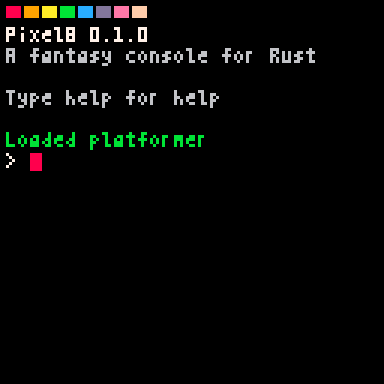
help lists the commands:
| command | what it does |
|---|---|
new <name> | create a project (a real cargo crate) and load it |
load <dir|cart.png> | load a project or a PNG cart |
save | save code + assets to disk |
reload | re-read from disk, dropping unsaved edits |
run | build + run (Esc stops) |
export <f.png|f.html> | export a PNG cartridge or a playable web page |
import <f.png> <dir> | turn an editable cart back into a project |
import-pico8 <f> [dir] | import a PICO-8 cart’s assets into a new project |
info | show the loaded cart’s metadata |
title <text> / author <text> | set cart metadata |
code / sprite / map / sfx / music | jump to an editor |
ls, cls, keys, reboot, exit | the usual suspects |
Two kinds of things can be loaded: a project (a directory — full
build/run/edit/export powers) or a cart (a PNG — runs as-is; if it embeds
source you can import it into a project and edit away).
Keys
keys (or help keys) prints these:
| key | what it does |
|---|---|
Esc | console ↔ editor; stop a running game |
Ctrl+R | build + run, from anywhere |
Ctrl+S | save + background build check |
Ctrl+Z / Ctrl+Y | undo / redo (in editors) |
Alt+← / Alt+→ | switch between editors |
arrows + Z/X | game buttons (also C/V and N/M) |
F1 | toggle the resource-stats overlay |
F6 | capture the screen as the cartridge label (while a game runs) |
The five editors
The tab icons across the top (or Alt+←/→) switch between editors. All of
them edit the two halves of your project: the code editor edits the Rust
under src/, while the other four edit assets.pixel8.json. Edits live in
memory until you save (or Ctrl+S); assets land in that one JSON file next
to your code, friendly to git diff. Every editor keeps a status bar along
the bottom with its key hints — you can see them in the screenshots below,
which show each editor with the platformer example loaded.
Code
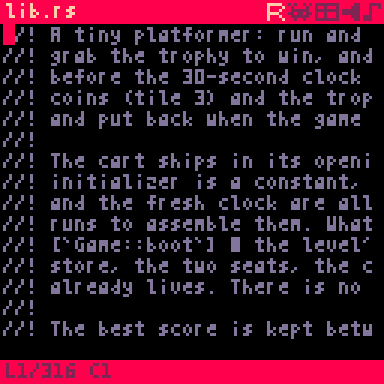
A small, honest text editor: 31 columns of Rust in a 4×7 pixel font, an
immediate cursor, and a status bar with the line count and cursor position.
The file name in the top-left corner is the file being edited; Ctrl+O
opens a picker to switch between the files under src/ or create a new
module. It’s genuinely pleasant for cart-sized programs — but it edits the
same files your external editor does, so use whichever you like.
Sprite
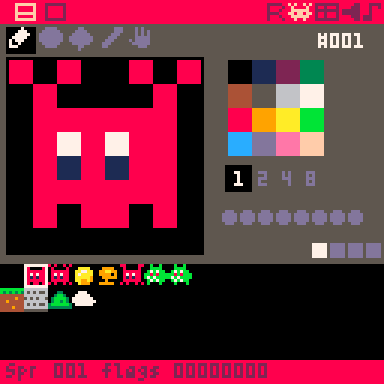
Pixel art on the 128×128 sprite sheet: 256 cells of 8×8 pixels. A zoomed
canvas fills the left; the toolbar above it holds the drawing tools. Down
the right side: the 16-color palette, the block-size buttons (1 2 4 8 —
edit a single sprite or a block up to 8×8 cells at once), and eight dots for
the sprite’s flag bits. The strip along the bottom is the sheet itself, for
picking which sprite to edit; the status bar shows its number and flags. An
8×8 block is taller than the four rows the strip shows, so at that size it
halves its cells and shows eight — the selection is always visible whole.
The flags mean nothing to the console — a game assigns its own meanings and
reads them back (this is how the platformer marks tiles as solid).
Map
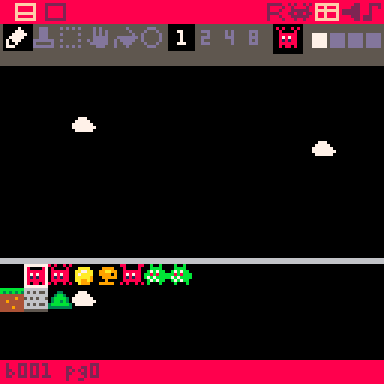
Paints sprites onto the 128×64 tile map. A scrollable viewport onto the map
fills the screen, with six tools in the toolbar — draw, paste, select, pan,
fill and circle — the current brush shown beside them, and the sprite-sheet
picker along the bottom; the status bar tracks the tile under the cursor.
The block-size buttons (1 2 4 8) are the sprite editor’s, so something
drawn there as a 2×2 or 8×8 block goes onto the grid as one stamp instead of
a cell at a time. The view zooms out to match — the brush is always 8 px on
screen, and at 8× the whole map is in front of you. Rooms, levels,
backgrounds: draw once here, then blit whole regions with one map call
from your game.
SFX
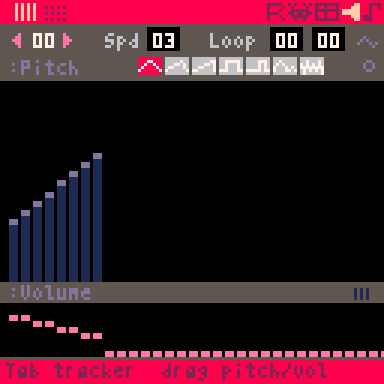
A step-sequencer for sound effects: 64 slots, 32 steps each. The top bar
picks the slot and sets its speed and loop points. Below is the pitch view
shown above: pick one of the eight built-in waveforms from the palette and
drag out a graph of pitch bars in it, with a volume strip underneath. Tab
switches to a tracker view (the same 32 steps as a note table, entered with
piano keys). There, move to a note’s waveform column (the right arrow key,
or a click), press i and type a digit from 0 to 7: the note turns into an
instrument note that plays the waveform of that slot, one of the first
eight. Those eight slots also get a button in the top bar that opens the
wave designer, for drawing their waveform by hand. Space previews the sound.
Music
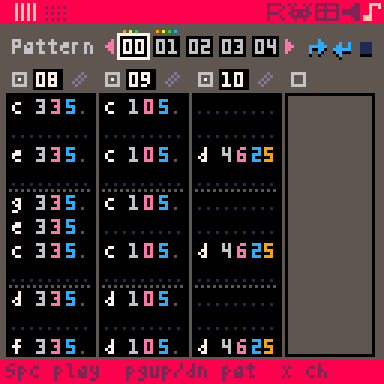
Arranges sfx into songs: 64 patterns, each assigning an SFX slot to up to
four channels. The pattern strip across the top selects and orders patterns
(with flow flags for looping and stopping); below it, one column per
channel, headed by its SFX slot number and showing that SFX’s notes inline —
the pencil beside a slot jumps into the SFX editor, where the actual notes
are authored. Space plays the pattern.
Running carts and the stats overlay
While a game runs, F1 toggles an overlay of the resource meters: CPU budget
used by update and draw, memory high-water, and measured fps. The two CPU
rows and the memory row refresh once a second, each showing that second’s
peak — the worst frame, not an average that would hide it — so the digits
stay readable instead of churning sixty times a second. When your game grows,
this is the first place to look — more on the budgets in
Living within the limits.
The headless CLI
Every pipeline stage also exists as a subcommand of the pixel8 binary, so
scripts and CI can do everything the prompt can:
pixel8                            boot the console
pixel8 <dir|cart.png>             boot with a cart loaded
pixel8 run <dir|cart.png>         boot, load, and run immediately
pixel8 new <dir>                  create a project
pixel8 build <dir>                compile it to wasm
pixel8 export <dir> <out.png>     build + write a png cart (--no-source to omit source)
pixel8 extract <cart.png> <dir>   editable cart -> project
pixel8 import-pico8 <c> [dir]     pico-8 cart (.p8/.p8.png) -> project
pixel8 export-web <in> <o.html>   one self-contained playable web page
                                  (--no-controls for a cart that reads no input)
pixel8 verify <cart.png>          load a cart and run 60 frames headless
verify is how this book’s own example carts are checked on every push —
the console is fully testable without a window.